Windows 11 OS installing steps
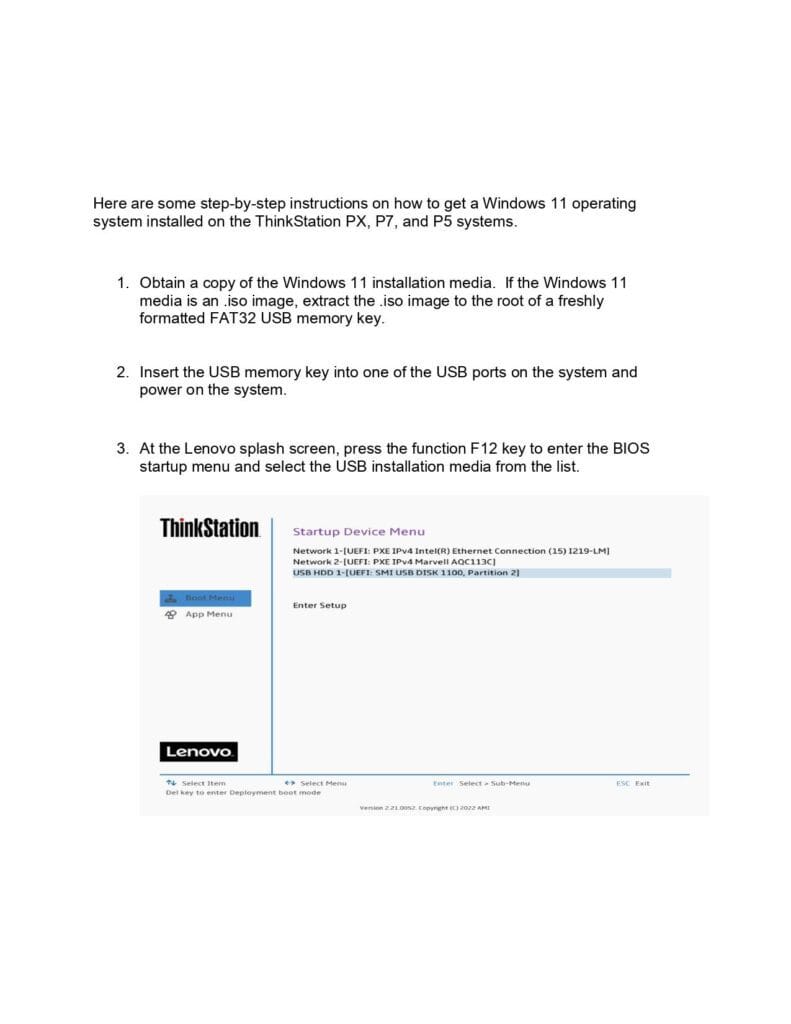
Page 1 – Prepare Installation Media
Download Windows 11 ISO.
Format USB to FAT32 and extract ISO contents to root.
Insert USB and power on system.
Page 2 – BIOS Boot Menu
At Lenovo splash screen, press F12.
Select USB drive from boot options
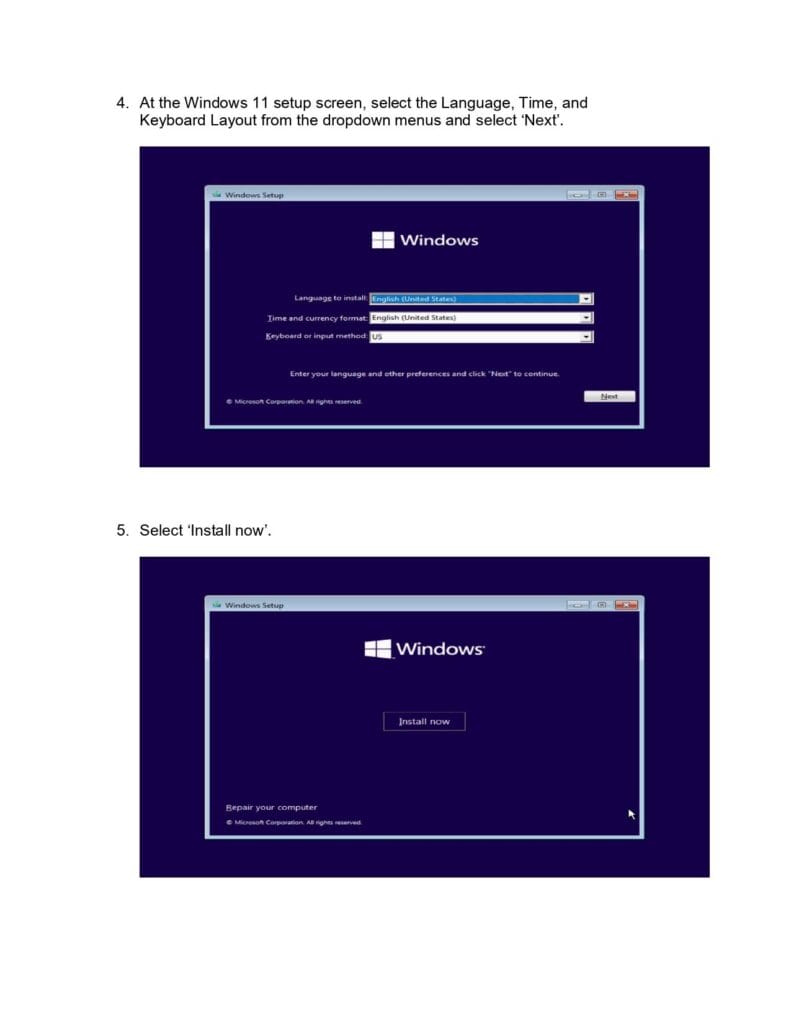
Page 3 – Setup Preferences
Choose Language, Time & Currency, and Keyboard layout.
Click Next.
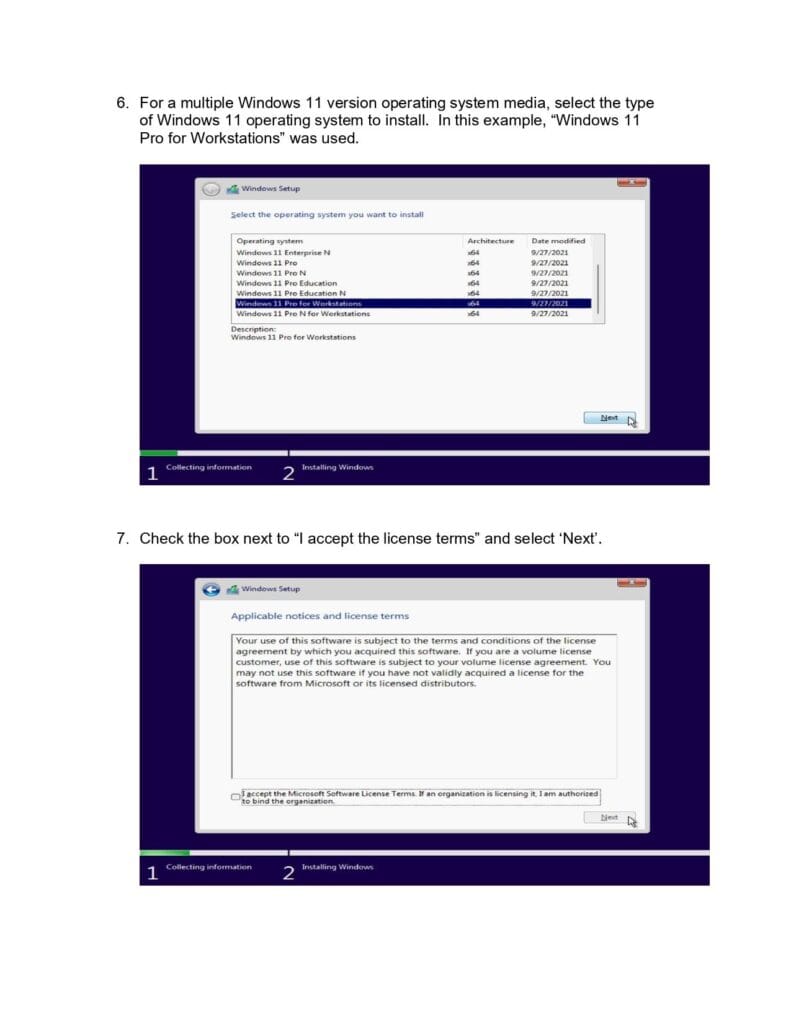
Page 4 – Begin Installation
Click Install Now.
Option to repair computer also available.
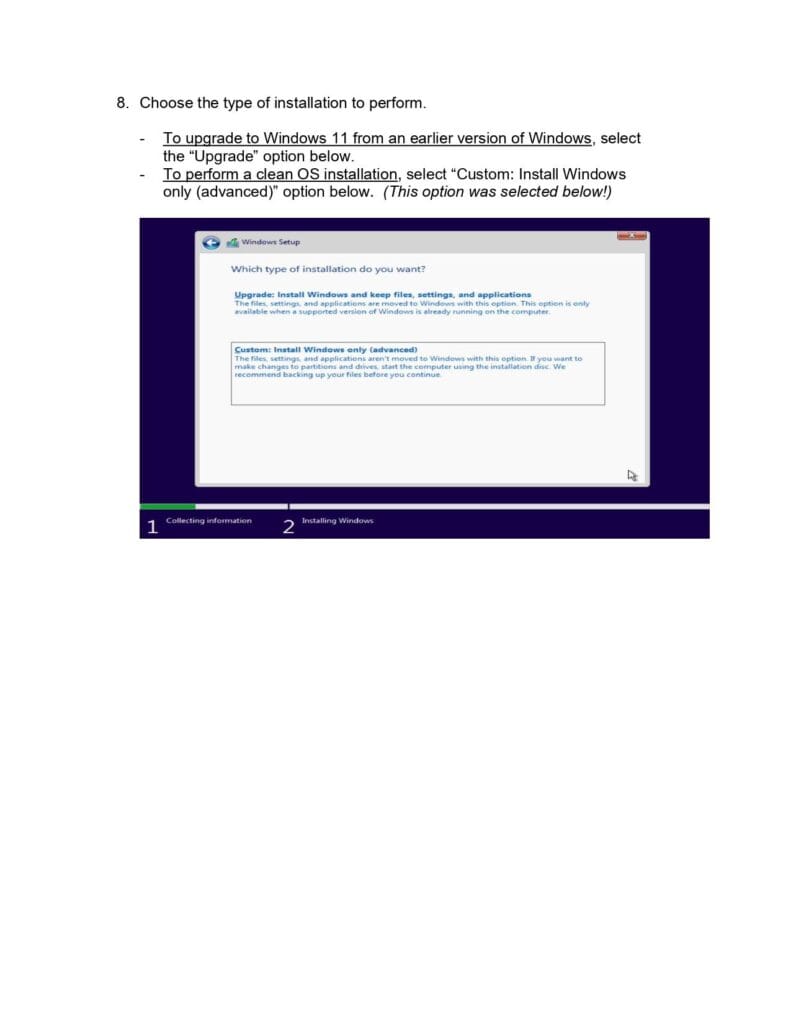
Page 5 – Select Windows Edition
Choose from multiple editions:
Windows 11 Pro
Windows 11 Enterprise
Windows 11 Pro for Workstations (used in example)
Click Next.
Page 6 – Accept License Terms
Tick “I accept the license terms”.
Click Next.
Page 7 – Choose Installation Type
Upgrade: Keep files/settings (only if supported OS is present).
Custom (Advanced): Clean install (recommended).
Click Next.
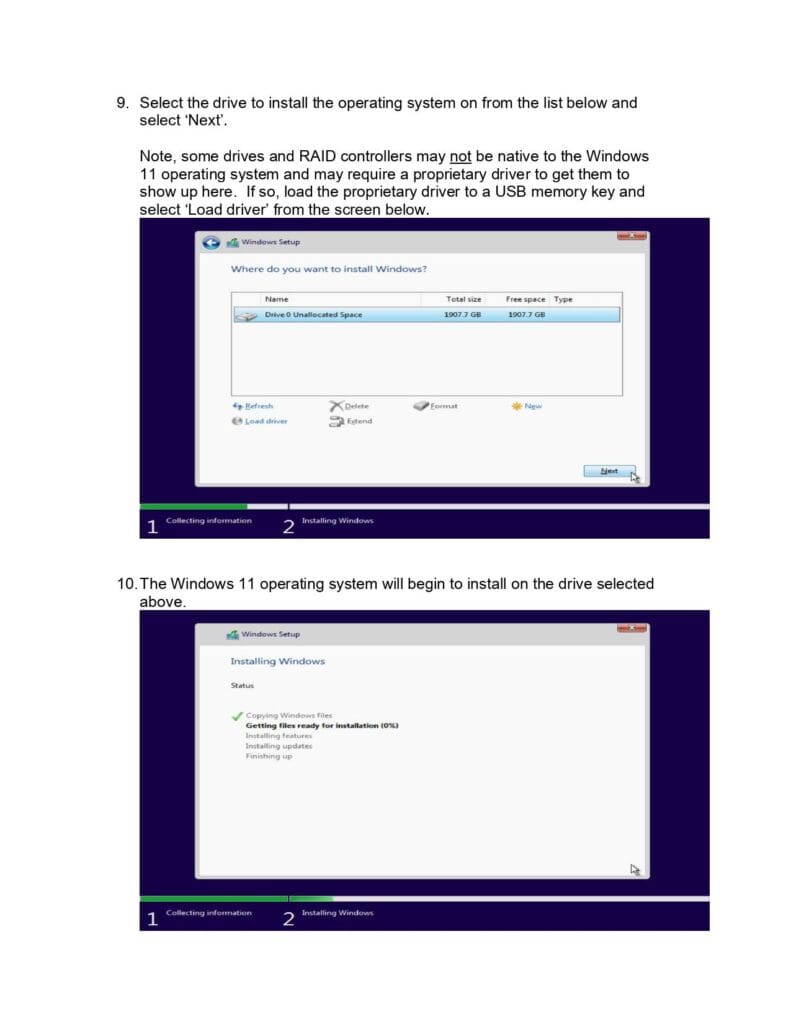
Page 8 – Select Installation Drive
Choose target drive.
Use Load Driver if RAID or special controller is not detected.
Click Next.
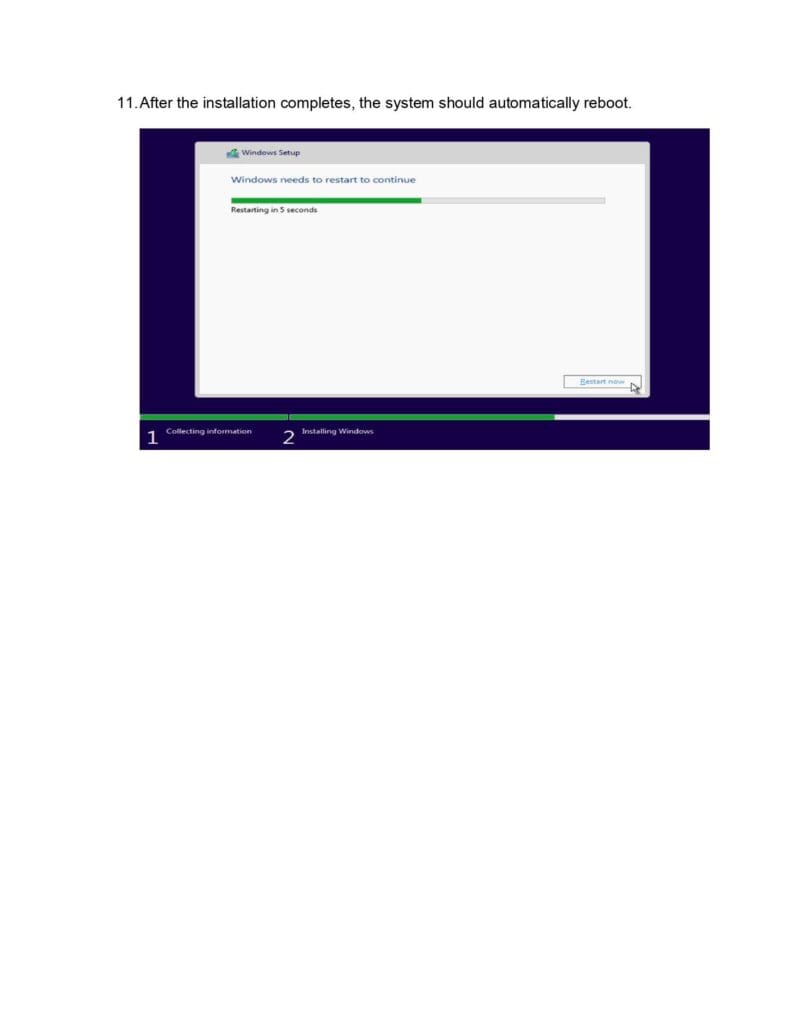
Page 9 – Installation Progress
Steps shown:
Copying files
Getting ready
Installing features
Installing updates
Finishing up
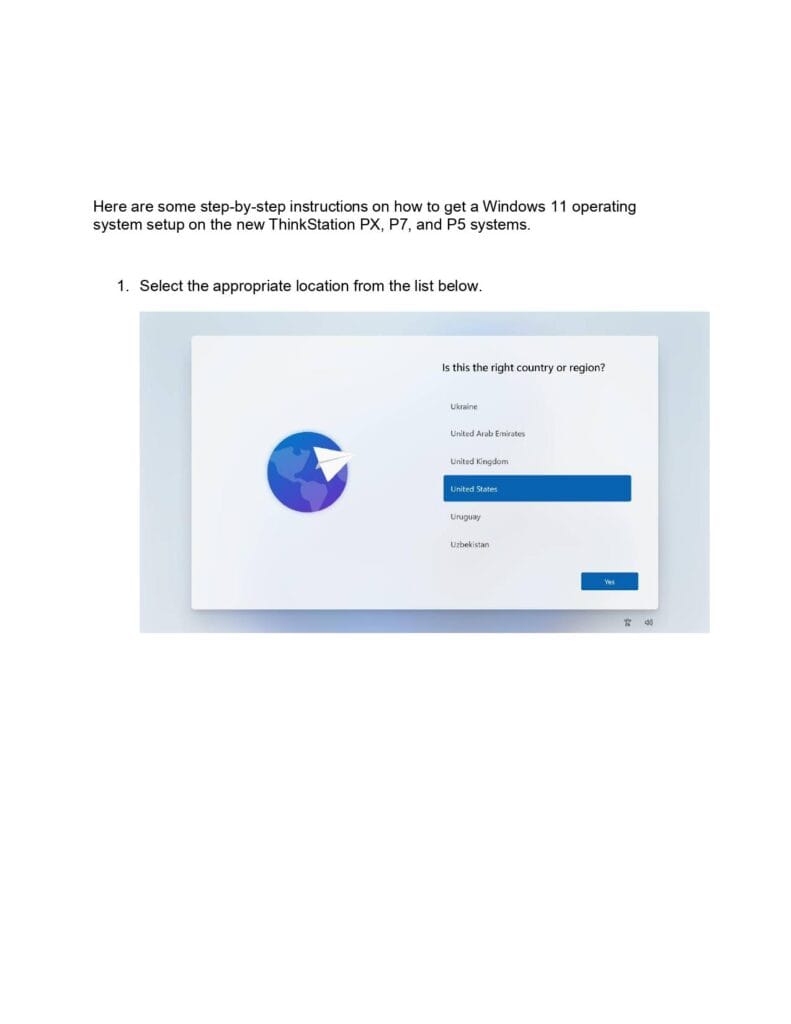
Page 10 – Restart System
System reboots automatically after installation.
Message: “Windows needs to restart to continue.”
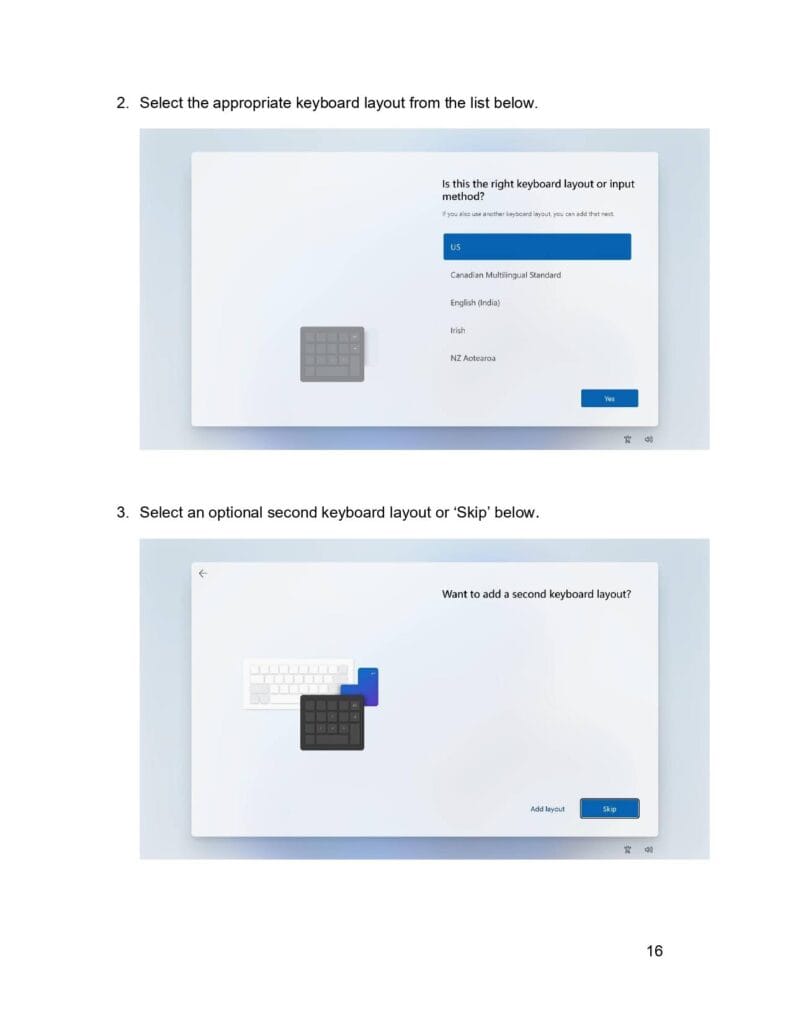
Page 11 – Region & Keyboard Setup
Select Country/Region.
Choose Keyboard layout.
Optionally add second layout or click Skip.
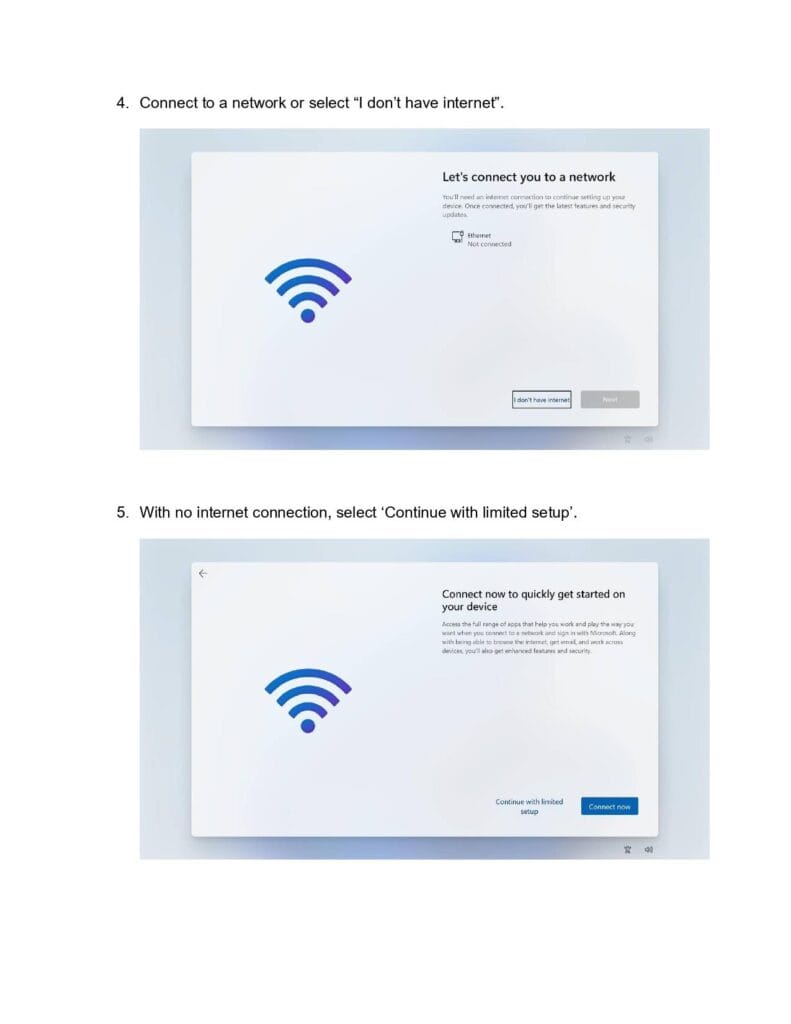
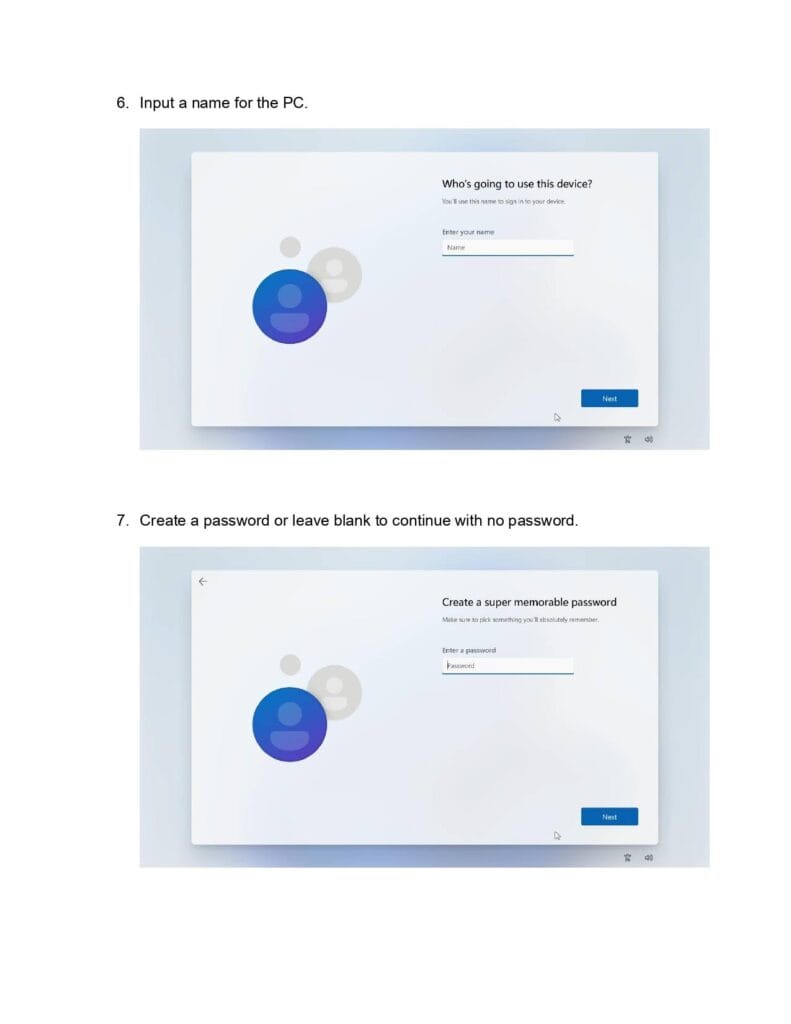
Page 12 – Network & Account Setup
Connect to Ethernet or choose “I don’t have internet”.
If offline, select “Continue with limited setup”.
Enter PC name and optional password.
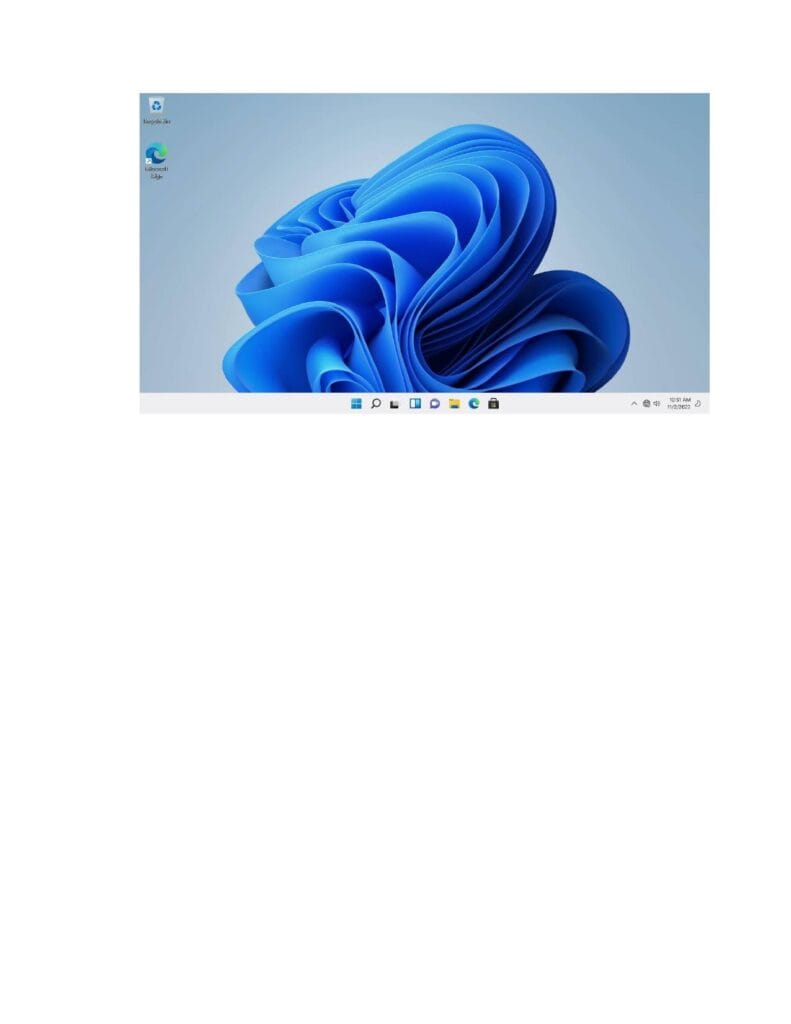
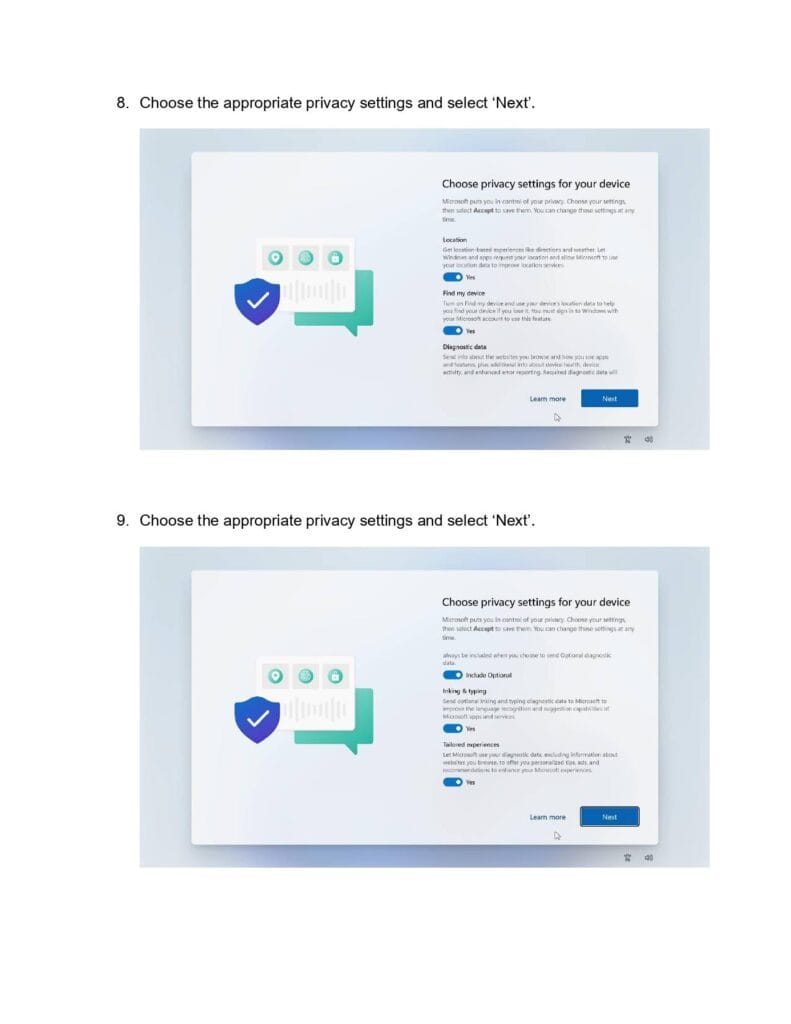
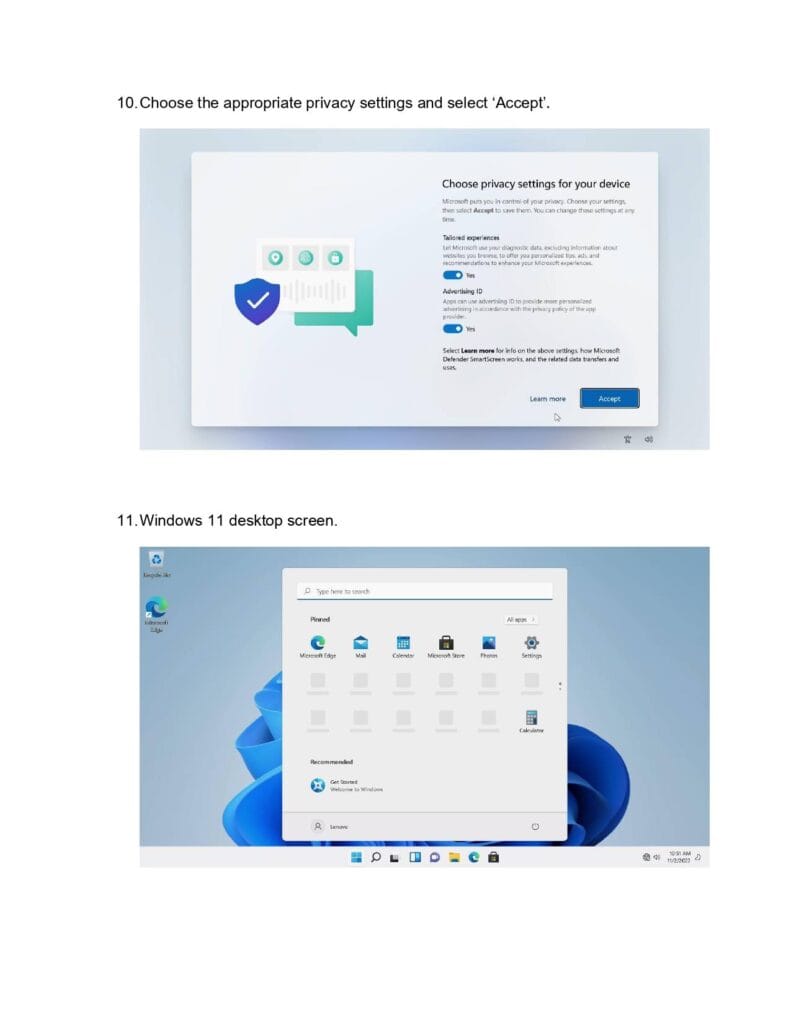
Page 13 – Privacy Settings & Desktop
Choose privacy options:
Location
Find My Device
Diagnostic Data
Inking & Typing
Tailored Experiences
Advertising ID
Click Accept.
Windows 11 desktop appears — setup complete.